How Can We Help You?
Step-by-step walkthroughs, annotated screenshots, and quick video guides to help you run your store like a pro.
Step-by-Step Guides
Detailed instructions with screenshots and video links for every workflow.
Quick Start: Launch Your POS in Under 2 Minutes
Learn how to configure your store name, set your default currency, and initialize your local catalog.
Download & Open AMAL POS
Install the app from the Apple App Store or Google Play Store. No credit card or mandatory cloud account is required to start.
Set Business Name & Currency
Navigate to Settings. Choose your primary store currency symbol (USD, EUR, GBP, NGN, KES, INR, etc.) and specify your shop name for receipts.
Grant Camera Access
Allow camera permission when prompted so the built-in scanner can detect product barcodes with millisecond speed.
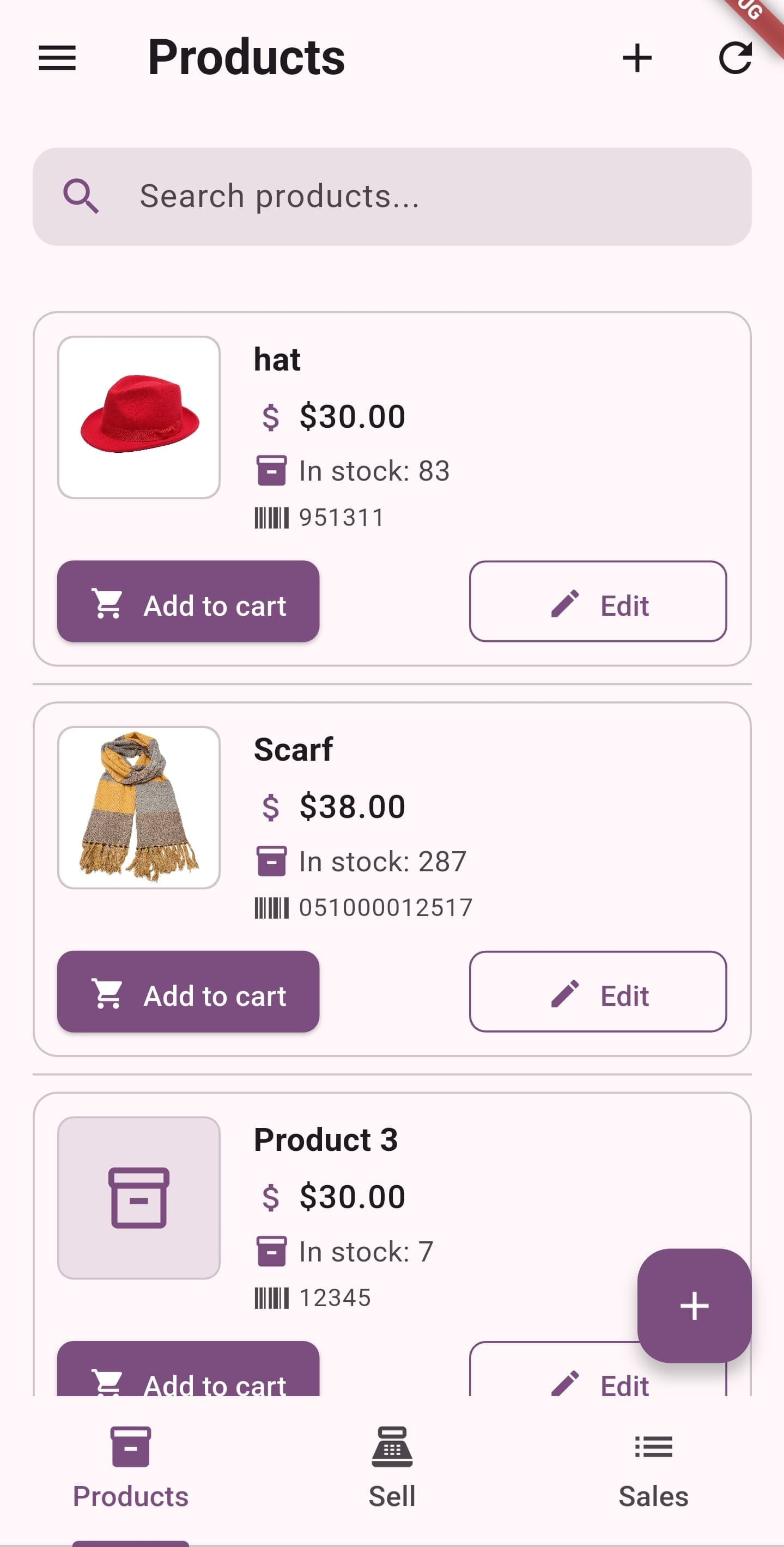
AMAL POS Home Screen setup and dashboard view
Mastering Barcode Scanning & Product Lookup
Maximize your checkout velocity using your phone camera as a high-speed industrial barcode scanner.
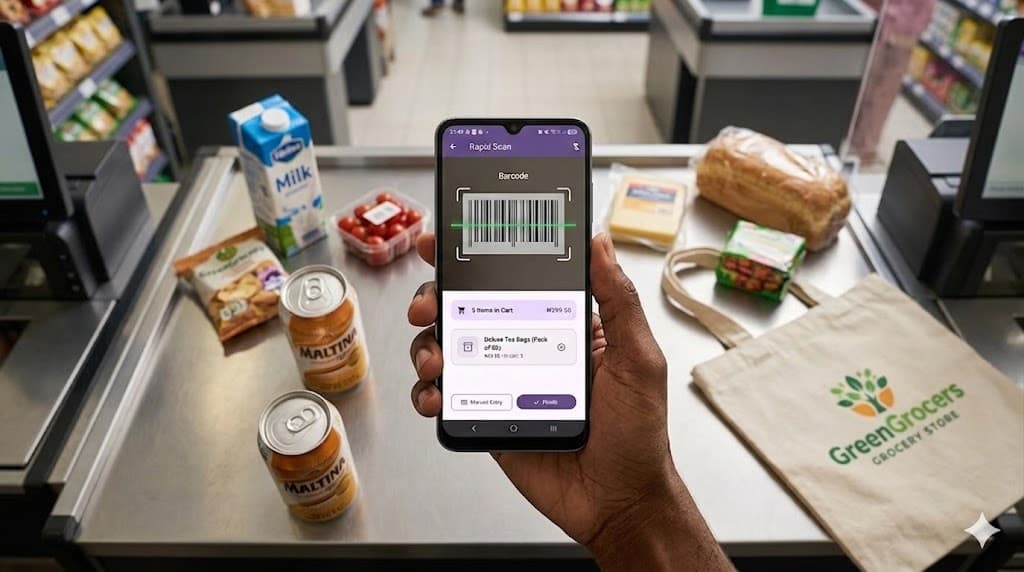
Tap the Scanner Icon
From either the Home screen or Cart screen, tap the camera scan button to open the instant viewfinder.
Align Any Standard Barcode
Hold your device 4–8 inches from the barcode. AMAL supports UPC-A, EAN-13, EAN-8, Code 128, Code 39, and QR codes.
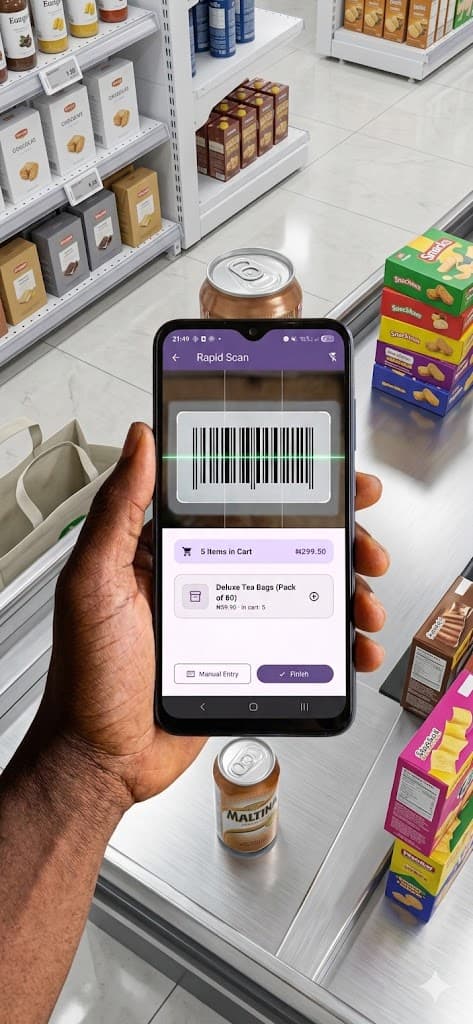
Continuous Scanning Mode
Keep the scanner open to scan successive items one after another without touching the screen between items.
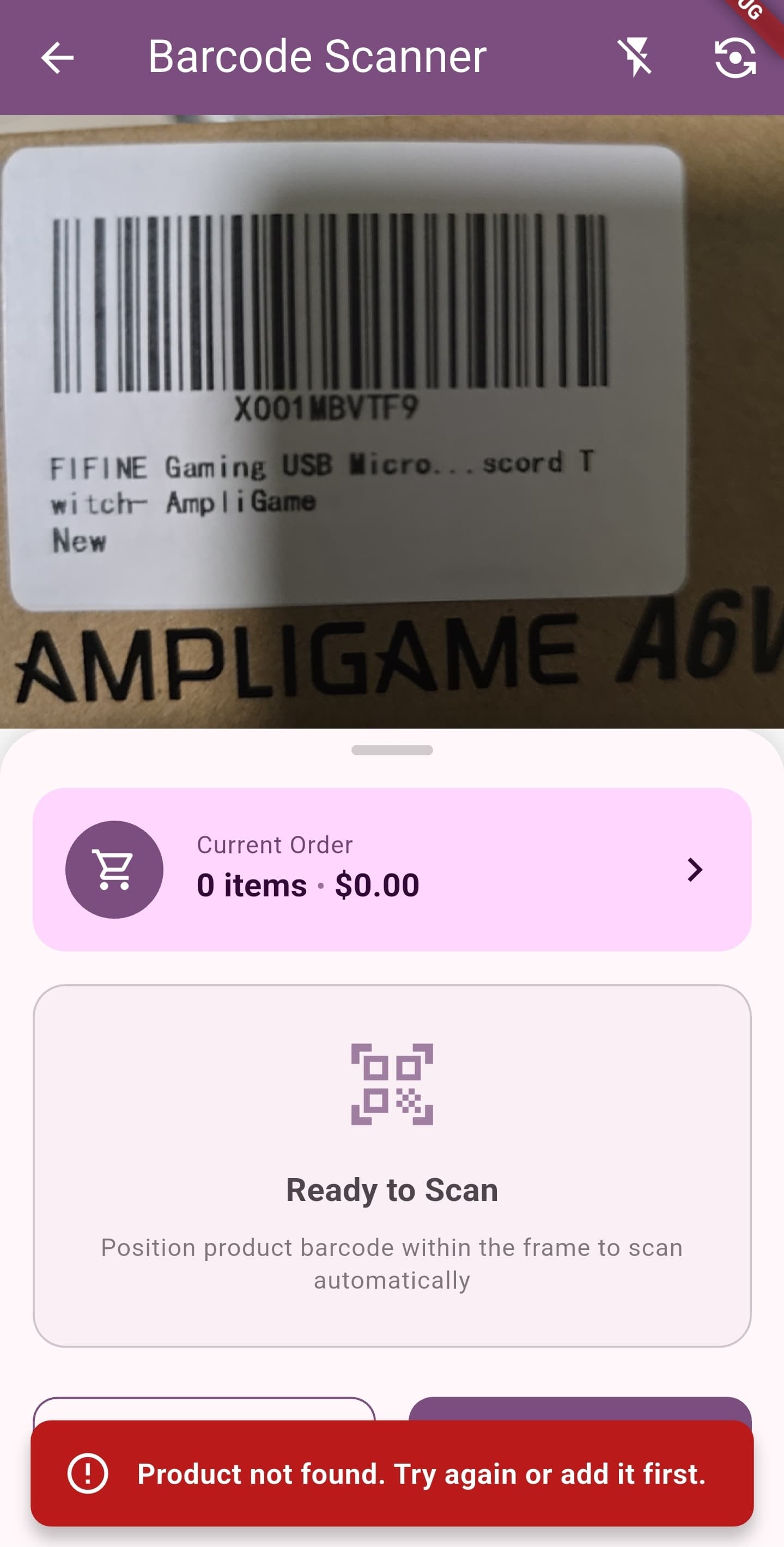
AMAL POS mobile barcode scanner scanning product code in real time
Bulk Product Upload via CSV Spreadsheet
Upload hundreds or thousands of products into your catalog in one click using Excel or Google Sheets.
Prepare Your CSV File
Create a spreadsheet with columns: Barcode, Product Name, Selling Price, Cost Price, Stock Quantity, and Category.
Navigate to Inventory > Bulk Import
Open the Inventory tab, tap the menu in the top right corner, and select 'Import CSV'.
Confirm Field Mapping & Import
Preview the incoming rows and tap 'Confirm Import'. Your local database will populate in seconds.
Bulk CSV product inventory upload in AMAL POS
Fast Checkout, Discounts & Split Payments
Process sales seamlessly during peak rush hours with custom discounts and flexible payment methods.
Add Items to Cart
Scan items with the camera or tap frequently sold favorites from the quick product catalog.
Apply Discounts or Adjust Quantities
Tap any cart item to edit quantity, or apply a transaction-wide discount percentage or flat amount.
Select Payment Method & Complete
Select Cash (with automatic change calculation), Card, Bank Transfer, or Split Payment. Tap 'Charge' to finalize.
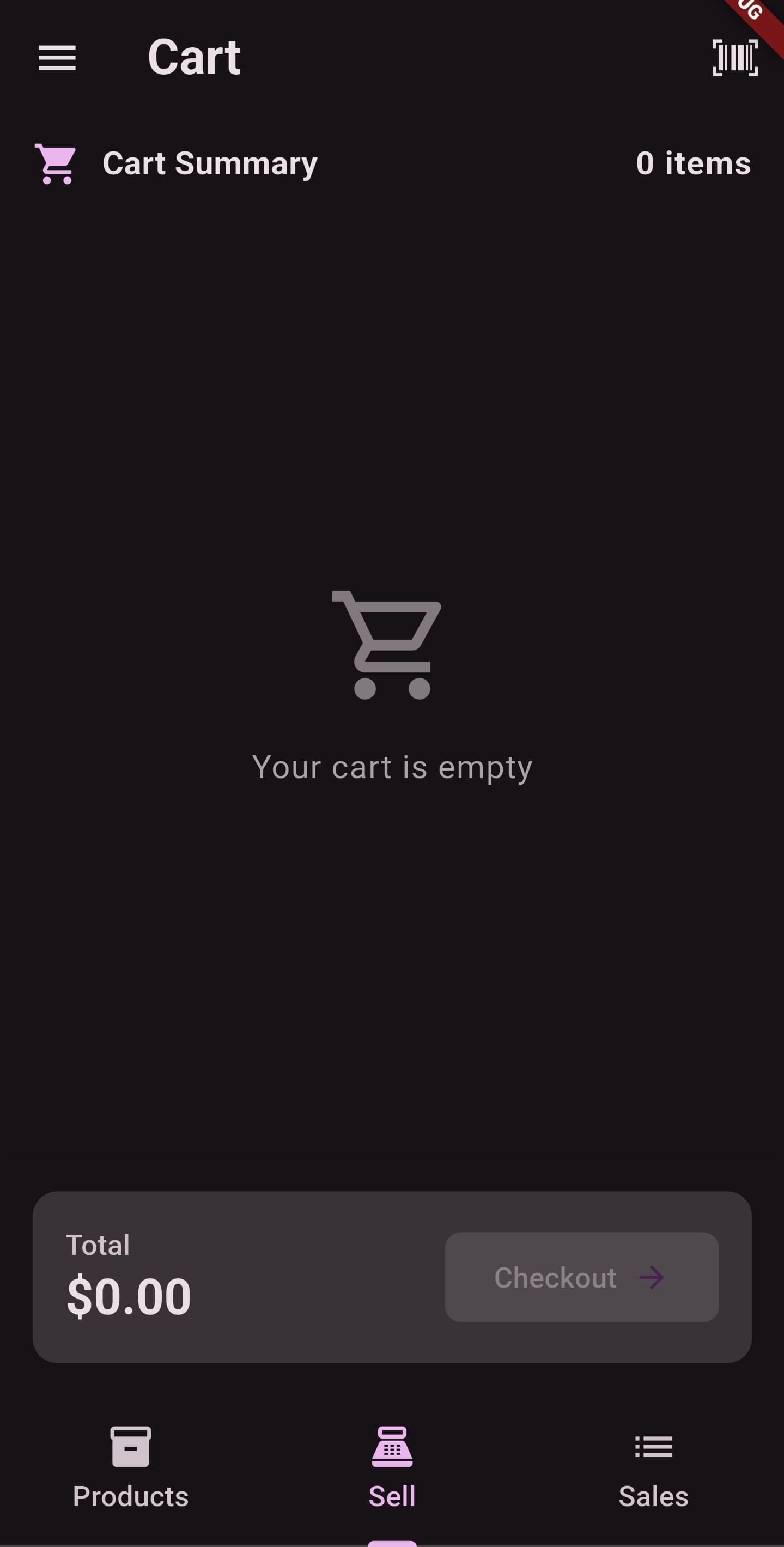
AMAL POS Cart and Checkout screen showing order calculation
Connecting Bluetooth & Wi-Fi ESC/POS Receipt Printers
Print professional paper receipts instantly using standard 58mm or 80mm thermal printers.
Power On & Pair Printer
Turn on your Bluetooth thermal printer and pair it inside your phone's Bluetooth settings.
Select Printer in AMAL POS
In AMAL POS Settings > Hardware, select 'Thermal Printer' and choose your paired printer from the device list.
Test Print & Auto-Print On Checkout
Run a test print. You can enable 'Auto-print receipt on transaction completion' for uninterrupted sales flow.
ESC/POS thermal receipt printing from AMAL POS mobile app
Offline Operations & Data Backup Guide
Safeguard your business records and understand how offline local storage works.
True 100% Offline Capability
All sales, inventory deductions, and receipts work without any Wi-Fi or mobile cellular data connection.
Export Local Backup Archives
Go to Settings > Backup & Restore > Export Database. Save the encrypted backup file to your iCloud, Google Drive, or email.
Restore or Move to New Device
Installing AMAL on a new phone? Simply select 'Import Database Backup' to restore your entire catalog and history.
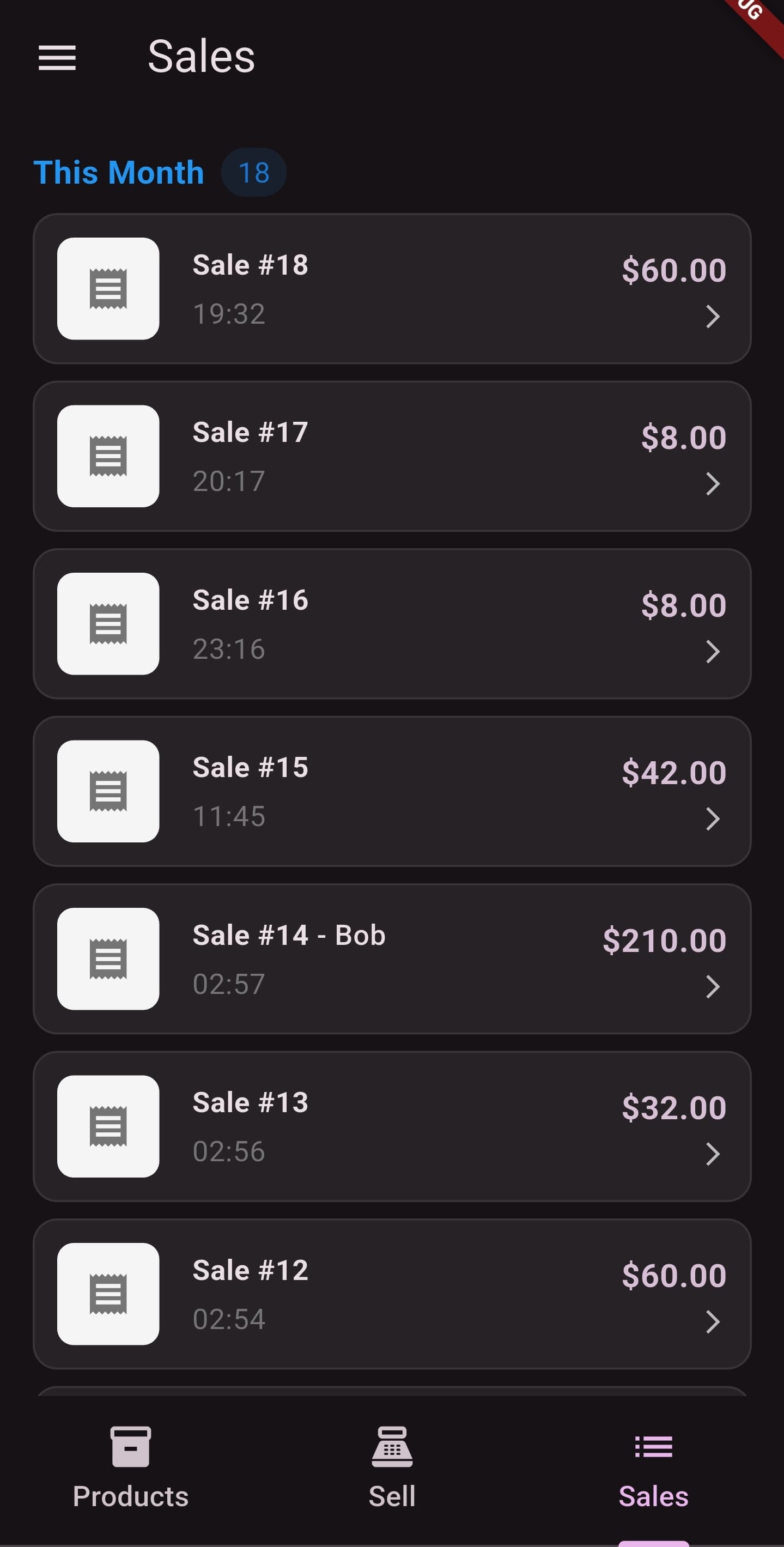
AMAL POS Sales history and reports screen
Frequently Asked Questions
Quick answers to common questions about features and setup.
Can I use AMAL POS without an internet connection?
Yes! AMAL POS is built offline-first. You can add items, scan barcodes, complete checkouts, print thermal receipts, and view daily sales reports without any internet connection.
Do I need to buy expensive proprietary hardware?
No. AMAL runs on your existing iPhone or Android smartphone. You can use your phone's built-in camera as a barcode scanner. If you want paper receipts, any standard low-cost ESC/POS Bluetooth thermal printer (58mm or 80mm) is supported.
How do I upload thousands of existing items from Excel?
You can save your spreadsheet as a CSV file and use our 'Bulk Import' feature under the Inventory tab. It takes less than 30 seconds to upload thousands of products.
Is my business revenue and customer data kept private?
Absolutely. All inventory and sales figures are stored locally in your phone's encrypted SQLite database. We do not sell, scrape, or monetize your retail transaction records.
Need Personalized Assistance?
Our merchant success team is ready to assist you with printer setup, catalog migration, or app configuration.
Email support@amalinventory.com